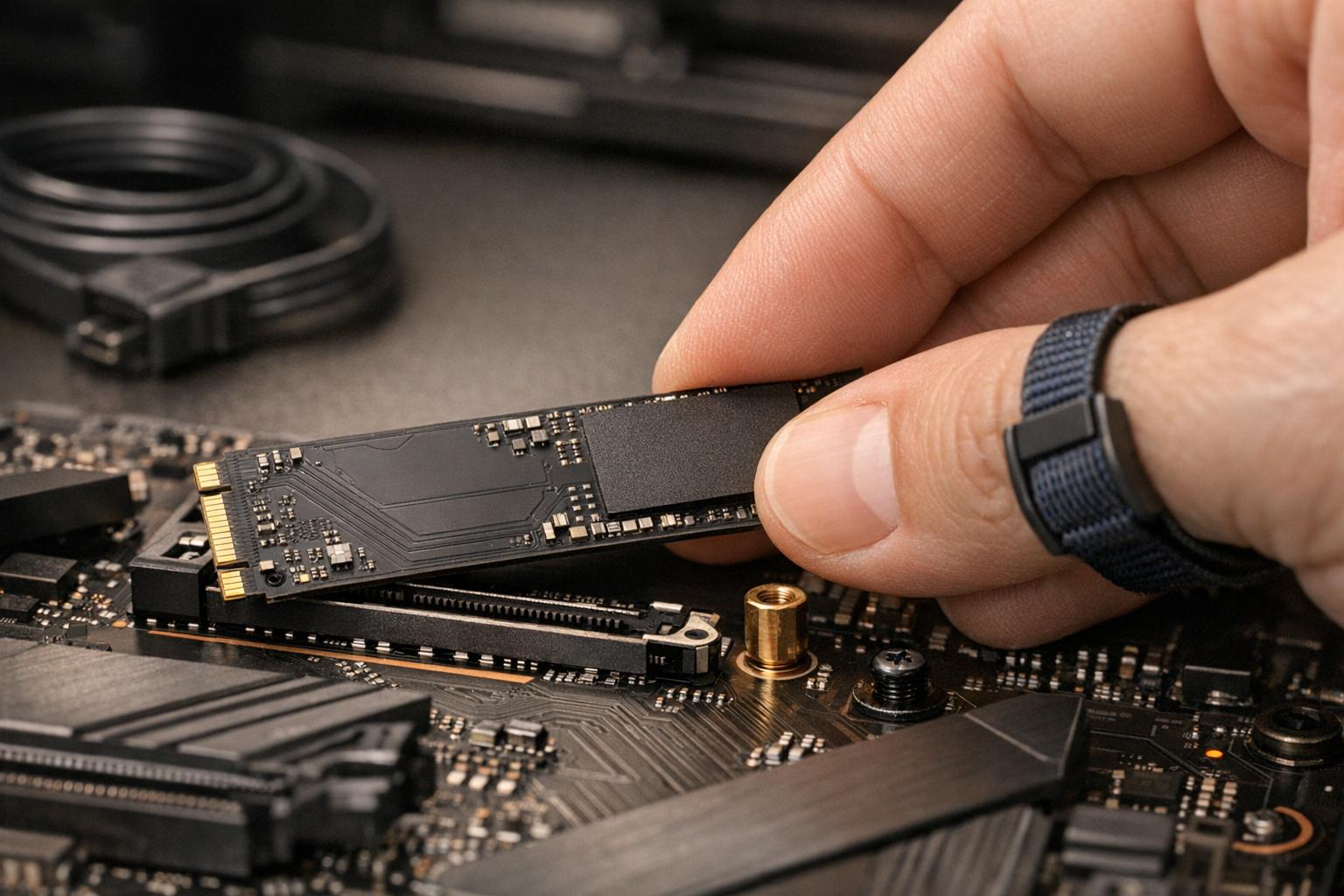
SSD connection issues fall into two categories: physical (loose cables, damaged M.2 slots, bent pins) and logical (wrong BIOS mode, uninitialized drive, outdated firmware). Most can be diagnosed in under 10 minutes with the right steps — and the majority are fixable without replacing the drive.
If you’ve already run through the basics and the drive still won’t show up, same-day SSD repair is available at both Gadget Medics locations in Boca Raton — computer diagnostics start at $85, applied toward your repair.
SATA vs. NVMe: Know What You’re Working With
Before troubleshooting, confirm which interface your SSD uses. Plugging an NVMe drive into a SATA-only M.2 slot is one of the most common mistakes we see — the drive simply won’t be detected, and nothing in Windows will tell you why.
| Feature | SATA SSD | NVMe SSD |
|---|---|---|
| Interface | SATA III | PCIe Gen 3, 4, or 5 |
| Protocol | AHCI | NVMe |
| Max Speed | ~550 MB/s | Up to 14,000+ MB/s (Gen 5) |
| Form Factors | 2.5-inch, M.2 (B+M key), mSATA | M.2 (M key), PCIe add-in card |
| Power Source | SATA power cable (2.5″) or slot (M.2) | Directly from M.2 slot |
| BIOS Mode Required | AHCI | NVMe (PCIe) |
Check the notch on your M.2 drive. NVMe drives use an M key (single notch on the right). SATA M.2 drives use a B+M key (notches on both sides). Your motherboard manual will confirm whether each M.2 slot supports PCIe, SATA, or both — don’t assume.
Physical Connection Problems: What to Check First
Physical issues cause the majority of SSD detection failures. Start here before touching any software settings.
2.5-Inch SATA SSDs
- SATA data cable: Unplug and reseat both ends — at the drive and at the motherboard. SATA cables fail more often than people expect, especially in systems that have been moved around. Swap the cable if you have a spare.
- SATA power connector: Confirm the power cable is fully clicked in. A half-seated power connector will cause intermittent detection failures that look like a dead drive.
- Try a different SATA port: Motherboards have 4–6 SATA ports. Some ports share bandwidth with M.2 slots and get disabled automatically when an M.2 drive is installed. Check your motherboard manual for which ports may be inactive.
M.2 SSDs (SATA or NVMe)
- Seating angle: Insert the M.2 drive at a 30-degree angle, press it flat, then secure the retention screw. A drive that’s even slightly raised at the end won’t make full contact with the slot.
- Retention screw: Missing or overtightened screws both cause problems. Finger-tight plus a quarter turn is enough — strip the standoff and you’re looking at a motherboard repair.
- Slot damage: Inspect the M.2 slot with a flashlight. Bent or missing pins inside the slot mean the motherboard needs service, not the SSD.
- Thermal pad interference: Some motherboards ship with thermal pads pre-installed on M.2 heatsinks. If the pad is too thick for your drive’s height (2280 vs. 2242 vs. 2260), it can prevent proper seating.
External SSDs and USB Enclosures
If an external SSD isn’t showing up, try a different USB port — preferably USB-A 3.0 (blue port) or USB-C directly on the motherboard, not a hub. USB hubs frequently cause power delivery issues with SSDs. Also test with a different cable; USB-C cables that support charging don’t always support data transfer at full speed.
BIOS Settings That Block SSD Detection
The BIOS is where most logical connection issues originate. These settings are worth checking even if the SSD was working before — a BIOS update or CMOS reset can change them without warning.
Check That the Drive Appears in BIOS
Boot into BIOS (usually Delete, F2, or F10 at startup — varies by manufacturer). Navigate to the storage or boot device list. If the SSD doesn’t appear here at all, the problem is physical — go back to the connection checks above. If it appears in BIOS but not in Windows, the issue is software-side.
AHCI vs. IDE vs. NVMe Mode
- SATA SSDs require AHCI mode. If the BIOS is set to IDE/Legacy, the drive may be detected but will run significantly slower and may cause boot errors.
- NVMe SSDs need the M.2 slot configured for PCIe/NVMe, not SATA. Some BIOS menus let you toggle this per-slot.
- Switching from IDE to AHCI on a drive that already has Windows installed will cause a boot failure unless you enable AHCI in Windows first (via registry edit or Safe Mode boot).
Secure Boot and CSM
If you’re installing Windows on a new NVMe drive and it won’t appear in the installer, check whether CSM (Compatibility Support Module) is enabled. CSM can hide NVMe drives from UEFI-based installers. Disable CSM, enable Secure Boot, and use a UEFI Windows installation media.
Windows Isn’t Detecting the SSD: Software Fixes
If the drive shows up in BIOS but not in Windows, the operating system either hasn’t initialized it or the driver is missing.
Initialize and Format in Disk Management
- Press Windows + X → select Disk Management.
- Look for a disk labeled Unknown or Not Initialized at the bottom of the window.
- Right-click it → Initialize Disk. Choose GPT for drives over 2TB or for use with UEFI systems; choose MBR for legacy setups.
- Right-click the unallocated space → New Simple Volume → follow the wizard to format and assign a drive letter.
New SSDs always require this step. The drive ships unformatted — it won’t appear in File Explorer until it’s initialized and has a volume.
Update or Reinstall the NVMe Driver
Windows 10 and 11 include a generic NVMe driver that works with most drives, but manufacturer-specific drivers (Samsung NVMe Driver, WD NVMe Driver, etc.) can resolve detection issues and improve performance. Download directly from the drive manufacturer’s support page, not from third-party sites.
Assign a Drive Letter
A formatted SSD with no drive letter assigned won’t appear in File Explorer. In Disk Management, right-click the volume → Change Drive Letter and Paths → Add → assign any available letter.
macOS SSD Connection Issues
On Mac, use Disk Utility (Applications → Utilities → Disk Utility) to check whether the drive is detected. If it appears grayed out or unmounted, select it and click Mount. If it shows up but won’t mount, run First Aid to check for filesystem errors.
For M.2 SSDs in external enclosures connected to a Mac: macOS won’t read NTFS-formatted drives natively (read-only at best). Format the drive as exFAT for cross-platform use or APFS/Mac OS Extended for Mac-only use.
MacBook Pro and MacBook Air models from 2013–2017 use a proprietary SSD connector — standard M.2 drives won’t fit without an adapter. Models from 2018 onward have the SSD soldered to the logic board, which means drive replacement isn’t possible without a full board swap.
Firmware Updates and SSD Health
Outdated firmware can cause detection failures, performance drops, and in rare cases, data corruption. Check for updates using the manufacturer’s tool:
- Samsung: Samsung Magician
- Western Digital / SanDisk: WD Dashboard
- Crucial / Micron: Crucial Storage Executive
- Seagate: SeaTools
These tools also display S.M.A.R.T. data — the drive’s self-reported health metrics. Watch for reallocated sectors, uncorrectable errors, or a high wear indicator. A drive reporting 95%+ wear remaining is healthy. One at 10% or below is approaching end of life.
If S.M.A.R.T. shows errors, back up immediately. Don’t wait to see if it gets worse.
When the SSD Has Hardware Damage
Some failures can’t be fixed with software or reseating. Signs of hardware-level failure include:
- Drive gets hot within seconds of being powered on
- Clicking or grinding sounds (more common with HDDs, but NVMe drives can produce audible coil whine when failing)
- Drive detected intermittently — shows up, disappears, shows up again
- S.M.A.R.T. reports a failed controller or uncorrectable read errors
- Drive appears in BIOS with 0MB capacity
A failed NAND controller or damaged PCB usually means the data is still intact but inaccessible without specialized equipment. At that point, professional data recovery is the only option — and the sooner you stop powering the drive on, the better the recovery odds.
We’ve handled SSD data recovery cases in Boca Raton where customers kept trying to boot a failing drive for days, reducing recoverable data from 95% to under 40%. Power it off and bring it in.
SSD Repair and Data Recovery in Boca Raton
Gadget Medics handles SSD diagnostics, replacements, and data recovery at both Boca Raton locations. Most SSD replacements in laptops and desktops are completed same-day. computer diagnostics start at $85, applied toward your repair — you’ll know what’s wrong before committing to a repair.
- Mission Bay Plaza: 20437 State Road 7, STE B-7, Boca Raton — (561) 279-6888
- Feinrose Plaza: 1906 Clint Moore Rd, Unit 5, Boca Raton — (561) 922-8588
All repairs come with the Broken Club lifetime warranty. With 600+ reviews and a 4.8+ rating across both locations, you can check what other customers experienced before you walk in.
Learn more about our data recovery services or see what laptop and desktop repairs we handle.
Frequently Asked Questions
Why is my SSD not showing up in Windows but visible in BIOS?
The drive is physically connected and detected, but Windows hasn’t initialized it. Open Disk Management (Windows + X → Disk Management), look for a disk labeled “Not Initialized” or “Unknown,” right-click it, and select Initialize Disk. Then create a new volume and assign a drive letter. This is required for every new SSD out of the box.
Can a loose M.2 screw cause an SSD to stop working?
Yes. Without the retention screw, the M.2 drive sits at an angle and loses contact with the slot under normal vibration or heat expansion. The drive may appear intermittently or not at all. Secure the screw snugly — finger-tight plus a quarter turn. Don’t overtighten or you’ll strip the standoff.
My NVMe SSD is detected but running at SATA speeds. Why?
The M.2 slot is likely configured for SATA mode in BIOS, or the slot only supports SATA despite accepting M.2 form factor drives. Check your motherboard manual to confirm which slots support PCIe/NVMe. Also verify the BIOS isn’t forcing the slot into SATA mode — some boards require a manual toggle per slot.
How do I know if my SSD is failing or just has a connection issue?
Test the drive in a USB enclosure on a different computer. If it’s detected and reads normally externally, the issue is with the original system’s slot, cable, or BIOS settings. If it fails externally too, run S.M.A.R.T. diagnostics using Samsung Magician, WD Dashboard, or CrystalDiskInfo. Reallocated sectors or uncorrectable errors confirm hardware failure.
Will switching to AHCI mode in BIOS break my existing Windows installation?
It can. If Windows was installed while the BIOS was in IDE mode, switching to AHCI will cause a boot failure (BSOD 0x0000007B). The fix: before changing the BIOS, boot Windows in Safe Mode once, then change the BIOS setting. Safe Mode loads the AHCI driver, which allows Windows to boot normally after the switch.
Can a failed SSD be repaired, or does the data have to be written off?
It depends on what failed. A corrupted filesystem or bad firmware can often be recovered without replacing hardware. A failed NAND controller or physically damaged PCB requires professional data recovery tools — the data is usually still on the NAND chips even when the drive won’t power on. Stop using the drive immediately and bring it in for evaluation before the situation gets worse.
How much does SSD replacement cost at Gadget Medics in Boca Raton?
SSD replacement pricing depends on the drive size and the device it’s going into. A 500GB NVMe upgrade in a laptop typically runs $80–$150 including the drive and labor. computer diagnostics start at $85, applied toward your repair. Call (561) 279-6888 (Mission Bay) or (561) 922-8588 (Feinrose Plaza) for a specific quote — most replacements are completed same-day.
Need a Repair? We Can Help.
Diagnostic fee applied toward repair. 90-day warranty. Most repairs same-day.