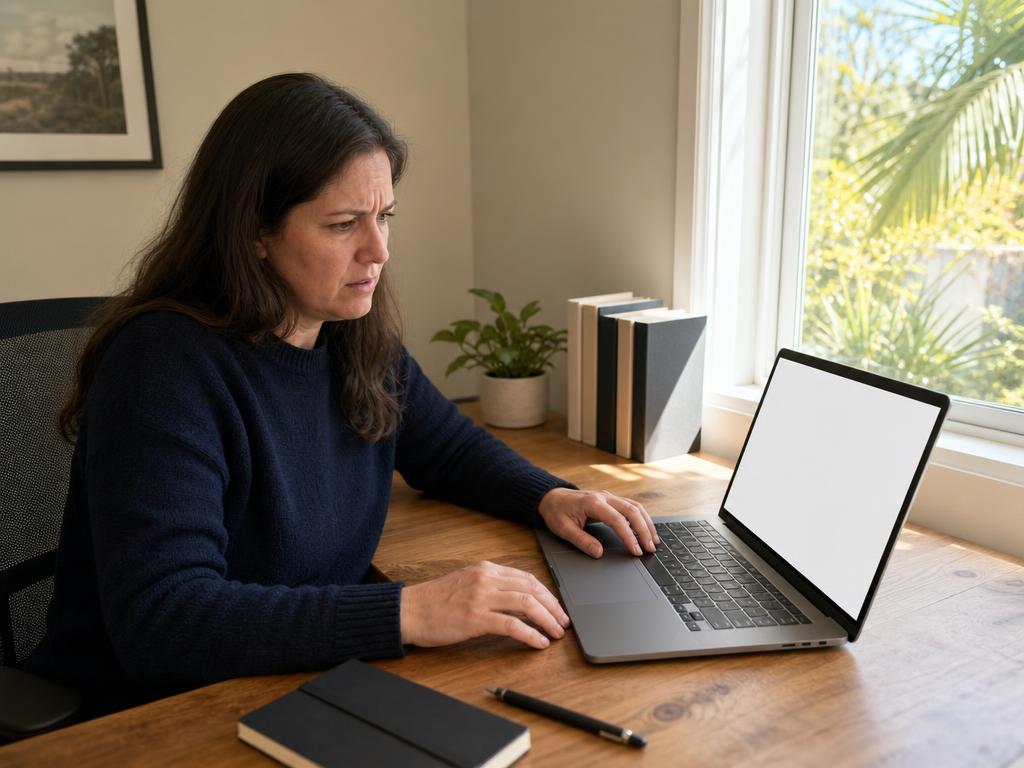
When a Windows Update breaks more than it fixes, it’s not a hardware problem and it’s not your fault — and this September, that’s exactly what happened in homes and offices across Boca Raton and South Florida. Microsoft’s September 2026 update to Windows 11 caused crashes, blue screens of death, and Explorer hang-ups on PCs with AMD discrete graphics cards. Microsoft confirmed the issue and released an emergency fix within days. In our experience, most users who apply the patch and update their AMD driver are back to normal within an hour — you don’t need to reinstall Windows, and you don’t need to replace anything.
What Happened With the September 2026 Windows 11 Update
Microsoft’s September 2026 Patch Tuesday update shipped with a serious compatibility defect. Users with AMD discrete graphics cards — desktop PCs and some laptops running AMD Radeon GPUs — started experiencing system crashes, blue screens, and Windows Explorer freezes shortly after the update installed automatically. Third-party applications that communicate with display drivers were also affected, causing programs to crash mid-use with no obvious warning.
Microsoft acknowledged the issue publicly within days, confirmed that AMD graphics driver compatibility was broken by the update, and issued an emergency out-of-band patch — meaning they didn’t wait for next month’s scheduled update cycle. Emergency patches of this type are reserved for widespread, confirmed bugs. The fact that Microsoft deployed one is a signal the problem was significant and the fix is tested.
Tom’s Hardware reported on the issue from the moment crash reports began surfacing, noting AMD graphics crashes, Explorer hang-ups, and broken third-party integrations as the three main failure modes. If your PC started crashing or throwing blue screens in September 2026 after a Windows Update, there’s a strong chance this is the cause — not a virus, not a failing drive, not something you did.
What to Do Right Now — Step by Step
Before anything else: back up your important files. The crash bug itself isn’t corrupting data, but any time a PC is behaving unpredictably, a backup is cheap insurance. Copy your Documents, Desktop, and Pictures folders to an external drive or USB — 10 to 20 minutes of work that eliminates any regret if something unexpected happens during the repair process. Eight years of handling Windows PC recovery in Boca Raton has taught us one thing clearly: the people who wish they’d backed up almost never saw the failure coming.
With files safe, apply Microsoft’s fix:
- Open Windows Update. Go to Settings → Windows Update → Check for updates. Microsoft’s emergency patch will appear here if it hasn’t installed already. Install any pending updates and note the KB number.
- Restart your PC completely — twice. After the update installs, do a full restart (not sleep, not hibernate). Then check Windows Update again and restart a second time if additional updates are waiting. Some patches require two restart cycles to apply fully.
- Test for 30 minutes. Open the applications that were crashing. Use the PC as you normally would. If the crashes have stopped, you’re done.
- Update your AMD driver directly. Even after Microsoft’s patch, visit AMD’s support site at amd.com/en/support and download the latest graphics driver for your specific GPU model. Windows Update delivers Microsoft’s fix; AMD’s own driver update clears up residual compatibility issues on the GPU side. These are two separate updates, and both matter.
Most affected users who follow these steps will see the crashing stop entirely. The emergency patch was deployed specifically because this problem was widespread and confirmed — applying it is the right move, not something to defer.
If Your PC Won’t Boot Normally: Safe Mode and Rollback
If the crashes are frequent enough that the PC won’t stay running long enough to install updates — or it’s not loading Windows at all — you’ll need Safe Mode. Safe Mode starts Windows with only essential drivers, bypassing the AMD graphics conflict and giving you a stable environment to work in.
Getting into Safe Mode when Windows won’t start
- Hold the Power button for 10 seconds to force a hard shutdown. Repeat this 2 or 3 times at the boot screen, before Windows finishes loading each time. After 2 to 3 interrupted boot attempts, Windows automatically opens the Recovery Environment.
- In the Recovery Environment, choose Troubleshoot → Advanced options → Startup Settings → Restart.
- After the PC restarts, press 5 to select Safe Mode with Networking. Networking lets you download the emergency update once you’re stable.
Rolling back the problematic update from Safe Mode
- In Safe Mode, go to Settings → Windows Update → Update history → Uninstall updates.
- Find the most recently installed update (dated September 2026). Uninstall it and restart normally.
- Once Windows is stable again, return to Windows Update and install Microsoft’s emergency patch — the corrected replacement for the update that caused the problem.
This is exactly the scenario the Windows Recovery Environment was designed for. You’re not factory-resetting the PC, not losing files, not reinstalling Windows. You’re swapping one bad patch version for a fixed one.
What to Watch After Applying the Fix
After installing the emergency patch, most users will see immediate improvement. A few things are worth monitoring over the first 24 to 48 hours:
- Crashes in GPU-heavy apps. Even with Microsoft’s patch in place, if you haven’t updated your AMD driver directly, you may still see crashes in games, video editing software, or any application that puts heavy load on the graphics card. The AMD driver download from amd.com/en/support addresses this — it’s separate from Windows Update and worth doing regardless.
- Windows Explorer still freezing. If your taskbar or file manager is still unresponsive after the patch, restart Explorer without rebooting: right-click the Start button → Task Manager → find “Windows Explorer” → right-click → Restart. This resets the Windows shell in a few seconds.
- One specific app crashing while everything else is stable. Third-party software that interfaces with display drivers may need to be uninstalled and reinstalled after this kind of update sequence. A clean reinstall of that application usually resolves it.
Ongoing system-wide instability — blue screens on normal tasks, crashes across multiple applications — after applying both the Microsoft patch and AMD driver update is unusual. If that’s what you’re seeing, something beyond the update bug is likely involved.
When to Bring Your PC to a Technician
The steps above resolve the issue for most people. But a same-day visit to a local technician makes sense in a few specific situations:
- Blue screens continue after applying the patch and updating the AMD driver. Persistent crashes after the fix often point to a hardware issue — an overheating GPU, a degraded drive, or a memory problem — that the update bug exposed rather than caused. That distinction matters for what happens next.
- Your PC won’t enter Safe Mode or the Recovery Environment at all. If the 2-to-3-interrupted-boot method isn’t triggering the Recovery screen, there may be a secondary problem with the boot sector or storage hardware that needs hands-on diagnosis.
- You’re concerned about data. If the PC crashed mid-write on an important file transfer and you haven’t been able to start it since, a technician can check drive health and run a recovery scan before any update operations. Our laptop repair and desktop PC repair teams handle data-safety checks as part of same-day diagnostics.
- You’d rather not navigate Safe Mode yourself. That’s completely reasonable. Bringing it to someone who does this every day isn’t giving up — it’s the efficient call.
Gadget Medics has been diagnosing and repairing Windows PCs in Boca Raton since 2018 — 8 years of straightforward answers over upsells. With 600+ Google reviews and a 4.8+ star rating across both our Boca Raton locations (Mission Bay Plaza at 20437 State Road 7, Suite B-7, and Feinrose Plaza at 1906 Clint Moore Rd, Unit 5), we’ve seen every iteration of this kind of update-induced problem. Walk-ins are welcome at both locations. Call (561) 279-6888 to check wait times before coming in.
If your PC still isn’t right after applying Microsoft’s emergency patch, bring it in to Gadget Medics — we’ll run a same-day diagnostic and tell you exactly what’s going on. See our diagnostic policy for how that works; any fee paid is credited toward your repair if you decide to proceed.
Frequently Asked Questions
Is my AMD graphics card permanently damaged by this Windows update?
No. The crash bug was a software driver compatibility issue, not physical damage to the GPU. After applying Microsoft’s emergency patch and updating the AMD driver from AMD’s support site, your graphics card should function exactly as it did before. Hardware damage from a driver-level software conflict is extremely rare and was not reported in connection with this specific incident.
How do I know if I have an AMD graphics card?
Press the Windows key, type “Device Manager,” and open it. Look under “Display adapters.” If you see “AMD Radeon” or any adapter name starting with “AMD,” you have an AMD GPU and may have been affected. If you see “Intel UHD Graphics,” “Intel Iris Xe,” or “NVIDIA,” this specific bug did not apply to your system.
My PC hasn’t crashed — does that mean I’m fine?
It depends on your hardware. If you have an AMD discrete GPU and haven’t restarted since the update, you may not have triggered the condition yet. Check Windows Update and install the emergency patch regardless — it’s a stability fix that applies even if you haven’t seen symptoms. If you don’t have an AMD GPU at all, this specific bug did not affect your system.
Should I turn off automatic Windows updates to prevent this happening again?
We’d recommend keeping automatic updates on. Update incidents like this happen, but unpatched security vulnerabilities are a more consistent and serious risk. The better approach: leave automatic updates enabled, but check tech news within 48 hours after each major Patch Tuesday. Incidents like this one are almost always reported quickly, and knowing about a bad update lets you catch it before it causes disruption.
What if the crashes continue after applying all the fixes?
Persistent crashes after the Microsoft patch and AMD driver update typically point to a hardware issue — overheating, a degraded drive, or a GPU that was already under stress — that the update exposed rather than caused. A diagnostic at a local shop can identify the root cause in a single visit. If you’re in Boca Raton or the broader Palm Beach County area, Gadget Medics handles Windows PC repair with same-day turnaround on most diagnostics at both our locations.
Need a Repair? We Can Help.
Diagnostic fee applied toward repair. 90-day warranty on parts and labor (lifetime on hardware for Broken Club members). Most repairs same-day.
Call (561) 279-6888