If your Android device is infected with malware, you need to act fast to protect your personal information and restore your phone’s functionality. Malware can cause overheating, battery drain, sluggish performance, and even financial losses by stealing your data or locking you out of your device. Here’s a quick guide to remove malware and prevent future infections:
- Run an Antivirus Scan: Use trusted apps like Norton or Malwarebytes to detect and remove threats.
- Boot into Safe Mode: Disable third-party apps temporarily to identify and uninstall suspicious ones.
- Clear Cache and Browser Data: Remove leftover malware traces from app storage and your browser.
- Secure Your Google Account: Change your password, enable two-factor authentication, and review account activity.
- Factory Reset: If all else fails, reset your device to its original settings (after backing up important files).
To avoid malware in the future, update your software regularly, download apps only from the Google Play Store, and enable Google Play Protect. If malware persists or causes severe issues, professional help may be necessary.
For detailed steps, keep reading.
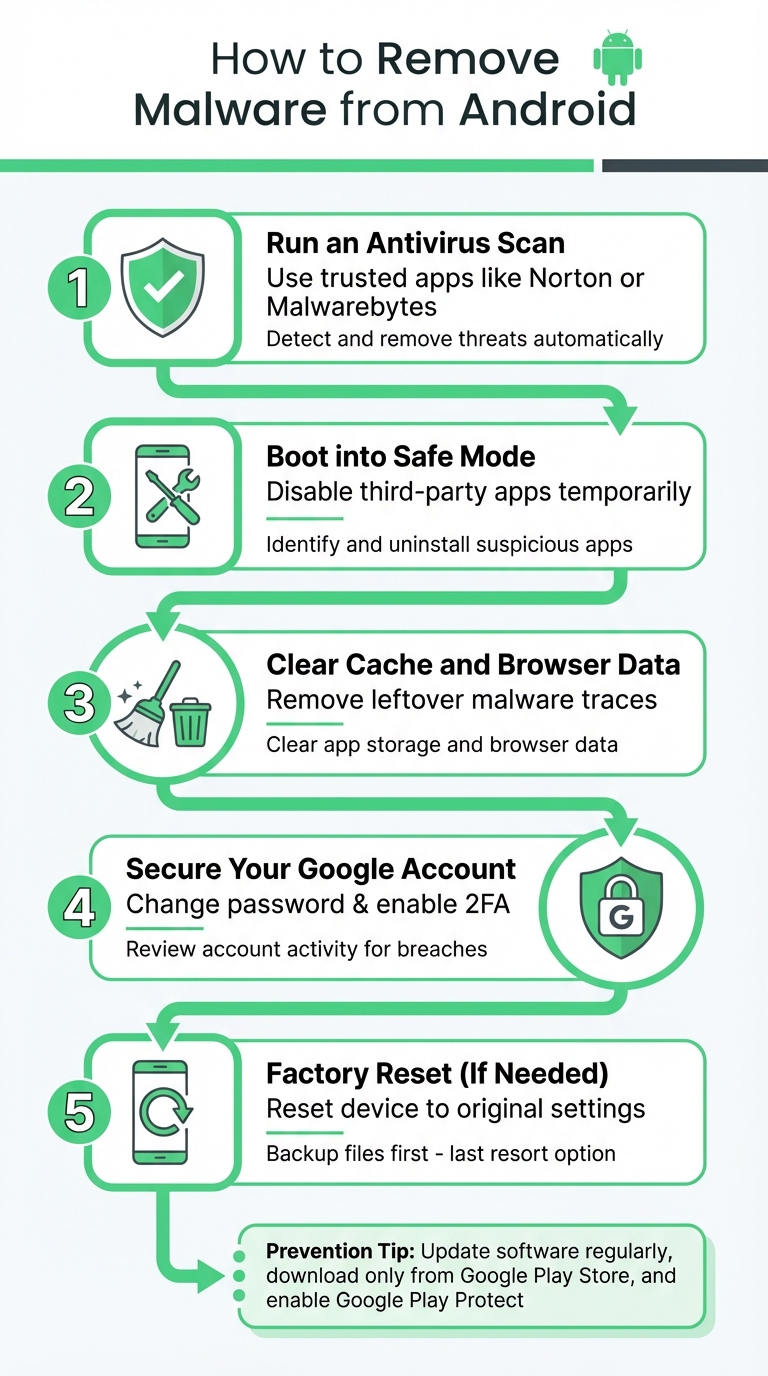
5-Step Guide to Remove Malware from Android Devices
How to Remove Malware from Your Android Device
If your Android device is infected with malware, it’s essential to act fast. You can remove it using built-in tools and reliable security software. Here’s how to get your device back to normal.
Scan Your Device with Antivirus Software
"The simplest way to remove a virus from an Android device is to use trusted antivirus software." – Jeremy Coppock, Staff Cybersecurity Editor, Norton
Start by downloading a trusted antivirus app from the Google Play Store. Popular options include Norton, Malwarebytes, and McAfee. Once installed, open the app and run a scan. Most antivirus tools offer two types of scans: Quick Scans, which check high-risk areas like memory and startup folders, and Full Scans, which go through every file on your device.
If the scan detects malware, follow the app’s instructions to quarantine or delete the infected files. Afterward, enable real-time protection in the app settings. This feature actively monitors your device and warns you about potentially harmful software before it can cause problems.
For extra security, use Google Play Protect. Open the Play Store, tap your profile icon, select "Play Protect", and run a scan to ensure your apps are safe.
Boot into Safe Mode to Find Problematic Apps
Some malware is sneaky enough to keep running even after an antivirus scan. Safe Mode can help – it temporarily disables all third-party apps, making it easier to pinpoint suspicious ones.
To enter Safe Mode, press and hold the Power button on your device. When the power menu appears, press and hold the "Power off" option until you see the "Reboot to Safe Mode" prompt. Tap OK or Confirm, and your device will restart in Safe Mode. You’ll know you’re in Safe Mode when you see the label at the bottom of your screen.
Next, go to Settings > Apps (or Apps & notifications) and look for anything unusual. This could include apps you don’t remember installing, duplicates, generic names, missing icons, or apps asking for excessive permissions (like a calculator requesting access to your location). If you spot anything suspicious, tap the app and select Uninstall.
If the Uninstall button is greyed out, the app might have Device Administrator privileges. To fix this, go to Settings > Security > Device admin apps (or Phone administrators), find the app, and turn off its admin access. Then return to the Apps menu to uninstall it. Once you’ve removed all questionable apps, restart your device normally.
Clear Your Cache and Browser Data
Leftover malware data can hide in your browser cache or app storage. Clearing these can help eliminate lingering threats.
To clear browsing data in Google Chrome, tap the three-dot menu in the upper-right corner, choose "Delete browsing data", select "All time" as the time range, and confirm by tapping "Delete data".
For individual apps, go to Settings > Apps, select the app, tap Storage, and then choose Clear Cache.
Secure Your Google Account
Malware may have stolen sensitive information, including your Google account credentials. Take immediate steps to protect your account.
First, change your Google password. Visit myaccount.google.com/security-checkup to perform a full security review. This tool helps you check connected devices, recent sign-ins, and third-party apps with access to your account.
Next, enable two-factor authentication (2FA) for an added layer of security. With 2FA, you’ll need a verification code in addition to your password each time you log in. While reviewing your account, remove any devices you don’t recognize.
Factory Reset Your Device if Necessary
If the malware persists after trying the above steps, a factory reset might be your only option. This process erases all data on your device, including malicious software like adware or spyware.
Before resetting, back up your important files and photos. Make sure to use a backup created before the infection to avoid reintroducing the malware.
To perform a factory reset, open Settings, navigate to System (or search for "Reset"), and select Reset options. Then, choose Erase all data (factory reset) or Factory data reset and confirm the action. Keep in mind that while rare, some advanced malware may survive even a factory reset.
Once your device is clean, it’s time to focus on preventing future infections.
How to Prevent Malware Infections
Once you’ve removed malware from your Android device, the next step is to safeguard it from future threats. By implementing a few simple strategies, you can minimize the risk of issues like battery drain, data theft, and unauthorized charges.
Update Your Software and Apps Regularly
Keeping your software up to date is one of the most effective ways to protect your device. Hackers often exploit vulnerabilities in outdated apps and operating systems to infiltrate devices with malware.
"Outdated software can be full of exploits hackers use to access your phone. Updating software gives you the best chance to avoid these weaknesses." – Norton
To stay secure, check for system updates by navigating to Settings > System > Software updates and follow the prompts to install any available patches. For apps, open the Google Play Store, go to Manage Apps & Device > Update All, and install pending updates. If an update doesn’t go through, restarting your phone might help get things moving.
Only Download Apps from Trusted Sources
While no app store is completely foolproof, the Google Play Store is far safer than third-party alternatives. Apps on the Play Store undergo a vetting process, whereas apps from unofficial sources often come with little or no security checks.
Before downloading an app, take a few moments to evaluate its legitimacy. Check the developer’s name, read recent reviews, and look at the app’s ratings. Be cautious of apps that mimic popular ones – they might be malware in disguise. Apps with few downloads, poor reviews, or strange design elements should raise suspicion.
Pay close attention to app permissions as well. If a simple game requests access to your contacts, GPS, or camera, it’s a red flag. Only grant permissions that are essential for the app to function. Combined with regular updates and Play Protect, these steps will significantly boost your device’s security.
Turn On Google Play Protect
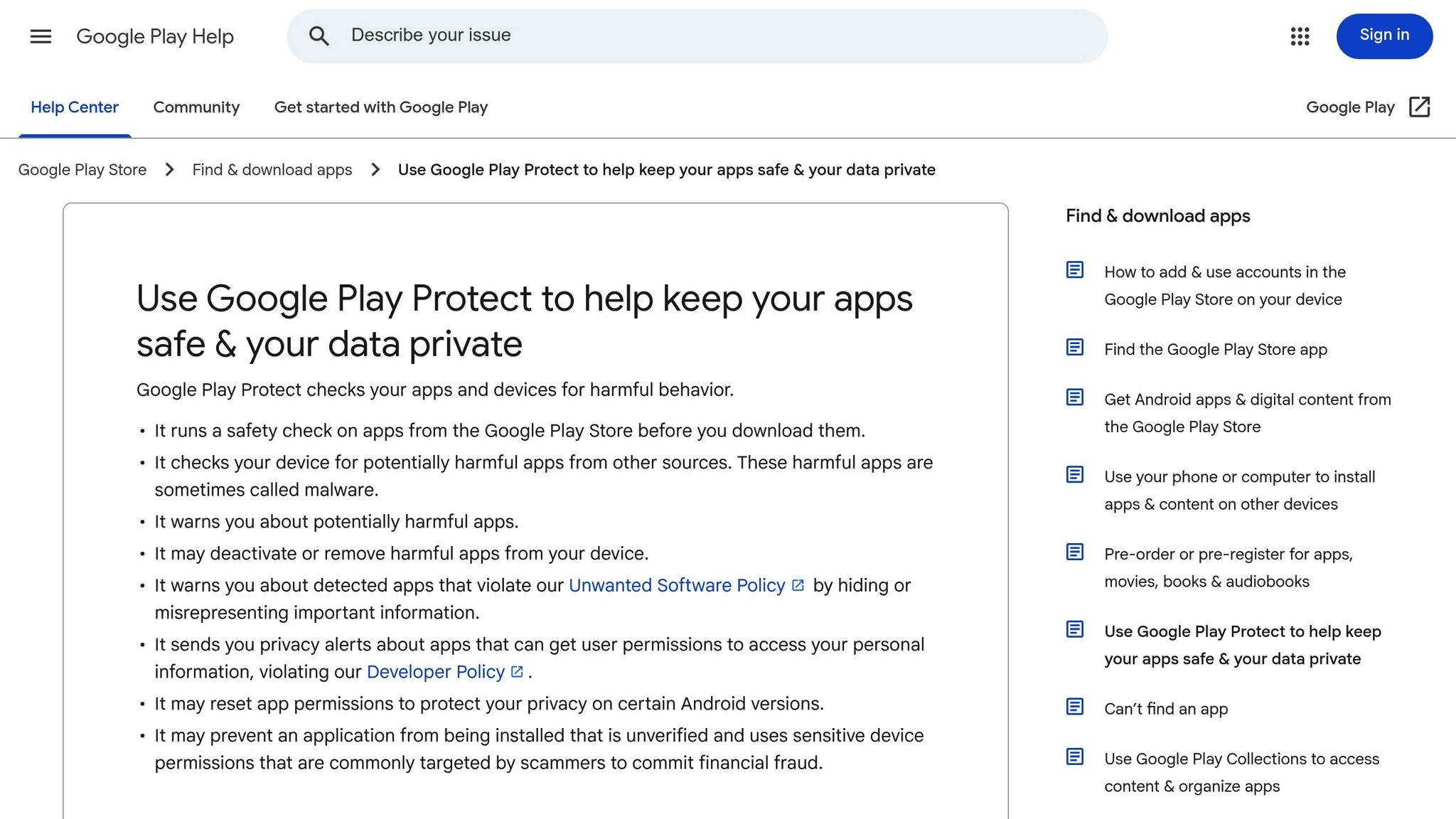
Google Play Protect is a built-in security feature designed to scan apps for harmful behavior both before and after they’re installed. It works quietly in the background, keeping an eye out for potential threats.
To activate Play Protect, open the Google Play Store, tap your profile icon, and select Play Protect. From there, tap the gear icon and toggle on Scan apps with Play Protect and Improve harmful app detection. With this feature enabled, your device will be continuously monitored for suspicious activity, giving you an added layer of protection.
sbb-itb-2e56335
When to Get Professional Help
Sometimes, DIY fixes just won’t cut it. If malware keeps coming back or your device is acting up in ways that seem beyond repair, it might be time to call in the pros. Knowing when to seek expert help can save you from losing time, money, or even your personal data.
Signs You Need Professional Help
If a factory reset doesn’t wipe out the malware or your device starts showing serious power-related issues – like refusing to turn on, overheating to dangerous levels, or crashing constantly – it’s a sign of a deeper problem. For example, certain malware, like the Loapi Trojan, can push your CPU to its limits, causing your phone to overheat so much that it could melt or even catch fire. If your phone feels unusually hot, unplug it immediately and power it down to avoid battery damage or worse.
Other red flags include ransomware lockouts that completely block access to your device, even after trying to adjust administrator settings. If you notice unexpected apps like Cydia or Sileo on your phone, it could mean someone has rooted your device without your knowledge, leaving it vulnerable to deep system-level threats. Additional warning signs include:
- Fraudulent bank charges that persist even after removing suspicious apps.
- Friends or contacts receiving scam messages from your accounts, even after you’ve changed your passwords.
- System instability that continues, even when running in Safe Mode.
When you encounter these issues, professional help can ensure your device is properly cleaned and repaired.
How Gadget Medics Can Help
If you’ve tried everything and the problem still persists, Gadget Medics in Boca Raton is here to help. Their expert technicians can diagnose your device to pinpoint the exact type of malware causing the trouble. Using advanced tools, they can remove even the most stubborn infections that standard antivirus apps overlook. Whether it’s ransomware, a device that won’t power on, or recovering lost data, they’ve got you covered.
In addition to malware removal, they can repair any damage caused by the infection and help recover compromised data. Plus, their repairs come with a warranty · Lifetime with Broken Club, giving you peace of mind. For more information or to schedule a diagnostic, visit gadgetmedics.com.
Conclusion
Protecting your Android device from malware boils down to staying alert and acting quickly. If you notice unusual signs like a rapidly draining battery, overheating, or unfamiliar apps popping up, don’t wait – run an antivirus scan immediately, boot your device into Safe Mode, and remove any suspicious software. As Jeremy Coppock, Staff Cybersecurity Editor at Norton, explains: "The simplest way to remove a virus from an Android device is to use trusted antivirus software". Additionally, clearing your browser cache and securing your Google account with 2-Step Verification are essential steps to prevent malware from causing further harm.
Prevention is always the smarter choice over trying to recover later. With nearly 36 million instances of malware targeting Android devices as of March 2025, routine maintenance is a must. Keep your operating system and apps up to date, stick to downloading apps from the Google Play Store, and enable Google Play Protect to catch potential threats early. These straightforward habits can save you a lot of trouble in the long run.
Of course, some malware can be too deeply embedded for a do-it-yourself solution. If your device refuses to power on, malware persists even after a factory reset, or ransomware locks you out, it’s time to seek professional help. Gadget Medics in Boca Raton specializes in diagnosing and removing stubborn malware, including administrative-level threats, and can repair any hardware damage caused by the attack – all with a warranty · Lifetime with Broken Club for peace of mind.
Keeping your Android device in top shape doesn’t have to be overwhelming. A little regular upkeep and knowing when to call in the experts can ensure your device stays secure and your personal information remains protected.
FAQs
What can I do if malware is still present after a factory reset?
If malware sticks around even after a factory reset, you might need to take an extra step – reinstall the device’s clean stock firmware or flash a new ROM. Once you’ve done that, run a trusted Android security scan to confirm the malware is completely gone. Still having trouble? It’s a good idea to turn to a professional service like Gadget Medics. They can deeply clean your device and get it back to running smoothly.
How do I find and remove suspicious apps from my Android in Safe Mode?
To get rid of suspicious apps on your Android device, start by using Safe Mode, which temporarily disables third-party apps. This lets you safely identify and remove any malicious software.
- Enter Safe Mode: Press and hold your device’s power button until the menu appears. Then, tap and hold Power off (or Restart) until a prompt asks if you want to reboot in Safe Mode. Confirm to proceed. On some devices, you might need to power off completely and restart while holding the Volume down button until "Safe mode" appears on the screen.
- Spot suspicious apps: Navigate to Settings → Apps & notifications → See all apps. Carefully review the list for anything unusual – like apps you don’t recognize, ones with generic icons, or apps you never installed.
- Remove the app: Select the suspicious app, tap Uninstall, and confirm. If the uninstall option is unavailable, go to Storage, clear the app’s data, and then try uninstalling it again.
- Exit Safe Mode: Restart your phone normally to leave Safe Mode and return to regular operation.
If you’re still having trouble or feel unsure about handling this yourself, reach out to Gadget Medics. They can help with malware removal and ensure your device is running smoothly again.
How can I protect my Android device from malware in the future?
To protect your Android device from malware, it’s essential to follow some straightforward practices:
- Keep your software updated: Make sure your Android operating system and apps are always up to date. Updates often include crucial security patches that help protect against vulnerabilities.
- Download apps from trusted sources: Stick to the Google Play Store for your apps and enable Google Play Protect to scan for threats. Avoid downloading apps from unknown websites or sideloading APKs, as these can expose your device to malware.
- Be cautious with links and messages: Avoid clicking on suspicious links in emails, texts, or social media messages. These are common ways malware can find its way onto your device.
Take a moment to review the permissions apps request. If something feels unnecessary or excessive, consider removing the app. Protect your accounts with strong, unique passwords and enable two-factor authentication whenever possible. Regularly back up your data to secure cloud storage or a trusted local device to keep your files safe.
For added security, avoid using public Wi-Fi networks or, if necessary, connect through a reliable VPN. Lock your device with a PIN, password, or biometric option, such as a fingerprint or facial recognition. And if you suspect malware despite these precautions, consider reaching out to experts like Gadget Medics. They can help diagnose and clean your device while keeping your data secure.