When you send your device for repair, your personal information – photos, messages, financial records – can be at risk. Technicians may access or mishandle data, and repairs often involve processes like factory resets that can erase everything. To safeguard your data, follow these five steps:
- Back Up Your Data: Use both cloud and local backups to ensure your files are safe, even if the repair leads to data loss.
- Enable Guest or Limited Access Accounts: Restrict access to your personal data by creating a temporary account for testing.
- Remove or Change Credentials: Disable screen locks, sign out of accounts, and remove SIM/microSD cards before handing over your device.
- Activate Repair or Maintenance Mode: Use features like Samsung’s Maintenance Mode or Google’s Repair Mode to protect your data during service.
- Choose Reputable Repair Services: Opt for providers with clear privacy policies and warranties to reduce risks.
Your device is a vault of personal information – these steps help keep it secure during repairs.
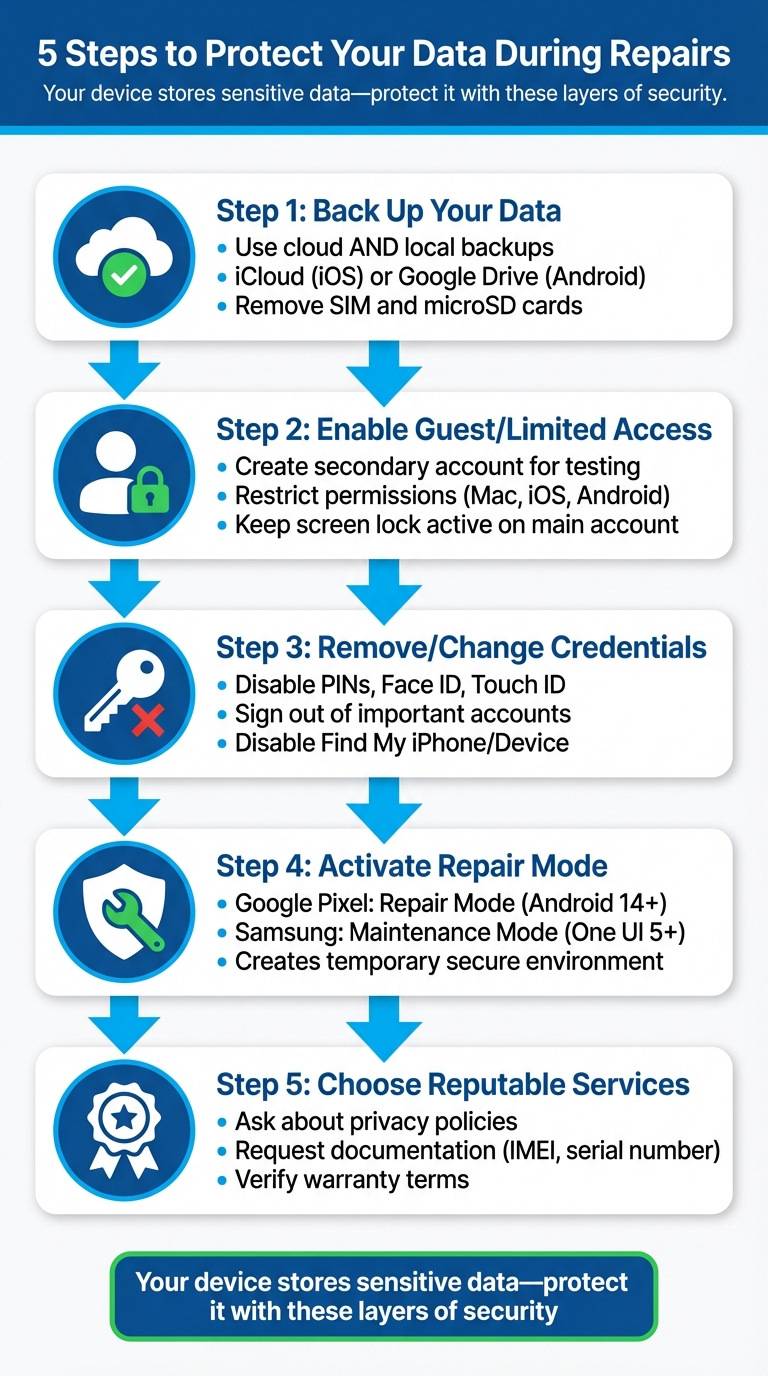
5 Essential Steps to Protect Your Data During Device Repairs
1. Back Up All Your Data First
Before sending your device in for repair, make sure to back up all your data. This step is crucial because most repair services clearly state they aren’t liable for data loss during the process. Repairs often involve factory resets, operating system reinstalls, or diagnostic tests – all of which can erase your files. Plus, there’s always a chance that hardware components, like your hard drive, could fail during the repair or while in transit. A backup gives you peace of mind, ensuring your important files are safe no matter what happens.
To be extra prepared, use both cloud and local backups. For iPhones and iPads, turn on iCloud backup by going to Settings > [Your Name] > iCloud > iCloud Backup. Android users can enable Google Drive backup through Settings > System > Backup. For a more thorough backup, connect your iPhone or iPad to a Mac (using Finder) or a PC (using iTunes), and create a local backup. Don’t forget to check the "Encrypt local backup" option to keep sensitive data secure.
Mac users can back up their devices using Time Machine with an external hard drive or SSD, which saves everything, including system files. After completing your backup, double-check it by confirming the timestamp and ensuring your files are accessible. Lastly, remove your SIM card and microSD card before handing over your device. These often contain personal data and aren’t needed for most repair jobs.
2. Enable Guest or Limited Access Accounts
Setting up a guest or limited access account is a smart way to let repair technicians test your device – like checking the screen or keyboard – without giving them access to your personal data. This separation ensures they can evaluate hardware while keeping your sensitive information private. As McAfee points out, high-value data deserves careful protection. Below is a guide for Mac, iOS, and Android devices.
For Mac users, you can create a secondary user account by navigating to System Settings > Users & Groups and clicking the + icon. This allows technicians to access your device without touching your primary account. Before handing over your Mac, double-check System Settings > Privacy & Security to ensure the guest account doesn’t have permissions like Full Disk Access, Files & Folders, or Photos. If you use FileVault encryption, make sure the guest account is only authorized to boot the system, not access encrypted files.
On iPhones and iPads, you can enable Content & Privacy Restrictions in the Screen Time settings. This prevents changes to your account details or location sharing while your device is being repaired. Keep in mind that Face ID locks the device after five failed attempts, requiring a passcode to unlock.
For Android devices, take advantage of the Safe Folder in the Files app to lock sensitive documents with a PIN. You should also review and adjust app permissions, especially for location, camera, and microphone access, to ensure your data stays protected during the repair process.
Regardless of the device, always keep a screen lock active on your main account. This adds an extra layer of security, especially if the device is left unattended during repairs.
3. Remove or Change Device Credentials Before Handover
Before handing over your device for repair, make sure to disable or change any passwords, PINs, or biometric credentials. This simple step prevents anyone from accessing your private data, like photos, messages, banking apps, work emails, or other sensitive information.
Start by temporarily turning off your device’s screen locks. Go into your security settings to disable PINs, patterns, Face ID, or Touch ID. This makes it easier for technicians to test functions, such as ensuring a new screen responds to touch, without needing your personal codes. If you’re dealing with an authorized service provider, keep this advice from Apple in mind:
"Never give your Apple Account password, device passcode, or account security details to anyone else. Neither Apple nor Apple Authorized Service Providers will ask for this information."
- Apple Support
To add another layer of security, sign out of important accounts like your Apple ID, Google account, banking apps, and social media. This helps protect your cloud-stored data and financial details from unauthorized access. If you’re locked out of the device, use another device to update your passwords. Also, disable features like "Find My iPhone" or "Find My Device", as these can sometimes interfere with repair procedures.
Don’t forget to remove your SIM and microSD cards before handing over the device. These often store contacts, messages, and photos that aren’t necessary for hardware repairs. If limited access is required for diagnostics, consider enabling "Repair Mode" (available on some Samsung devices under Settings → Device Care) to restrict what data can be accessed.
sbb-itb-2e56335
4. Activate Repair and Maintenance Mode
In addition to backing up your data and securing your device credentials, enabling a repair or maintenance mode is a smart way to protect your personal information while technicians work on your device. Many modern smartphones now include these modes, allowing hardware testing without exposing sensitive data. It’s an extra step that enhances the security measures you’ve already taken.
For instance, Google Pixel devices running Android 14 (December 2023 update or later) feature a Repair Mode. You can activate it by navigating to Settings > System > Repair mode. This mode launches a temporary, secure version of Android, ensuring any changes made during the repair process are automatically erased once you exit the mode. To use this feature, your Pixel device must have at least 2 GB of free internal storage.
"Repair Mode gives you peace of mind knowing that your personal data is protected and preserved, even when you’re sending your device to a repair shop or taking it in for service."
Similarly, Samsung Galaxy devices with One UI 5 or newer include a Maintenance Mode. You can find this option under Settings > Device care > Maintenance mode or through the Samsung Members app. This mode creates a separate account that hides your personal information during repairs. On Samsung devices with 64 GB of storage, 1.5 GB of free space is required to activate this mode, while devices with larger storage capacities only need 500 MB.
For iPhone users, Apple currently does not provide a dedicated Repair Mode. To ensure privacy, it’s essential to back up your device before sending it in for repair.
5. Choose Repair Services with Clear Privacy Policies and Warranties
Not all repair shops handle data security the same way, so it’s important to ask the right questions before handing over your device. Start by inquiring about their privacy practices – who will have access to your phone, and how long will any data be retained during the repair process? Shops that lack formal, written privacy policies are more likely to allow technicians to access or even copy customer data.
Making the wrong choice can have serious repercussions. Back in 2016, technicians working for an Apple repair contractor accessed private photos and videos from a customer’s device, which led to a multi-million dollar settlement.
"Professional technicians receive training to focus specifically on repair tasks and avoid accessing personal information." – Asurion
To protect your data, prioritize transparency. Always ask for documentation, such as a receipt or job sheet, that includes details like your device’s IMEI number, serial number, the reported issues, and any accessories left behind. This paperwork not only ensures accountability but also helps confirm that you’ll get your original device back.
A solid warranty is another safeguard to look for. It can save you from additional expenses if the initial issue persists or if new problems arise after the repair. For instance, Gadget Medics in Boca Raton provides clear privacy policies and backs their work with a warranty · Lifetime with Broken Club, offering both data security and long-term assurance. Be sure to verify the warranty terms and confirm whether repeat repairs, if needed, will be done at no extra cost.
Conclusion
Your device is like a personal vault, safeguarding everything from sensitive banking information to private messages. Protecting this data requires a multi-layered approach, and these five steps can help ensure your information stays secure.
Start by backing up your data to both cloud and local storage. As Brittany Roston from SlashGear aptly puts it:
"The responsibility to create that data backup is entirely on you".
Next, secure your device before handing it over for repairs. Use guest or repair mode if available, remove any saved credentials, and eject SIM and SD cards to allow testing without risking your personal data.
Lastly, choose a repair service that prioritizes your privacy and offers clear warranties. For instance, Gadget Medics in Boca Raton employs trained technicians who not only safeguard your data but also provide quality repairs backed by a warranty · Lifetime with Broken Club.
FAQs
What steps can I take to keep my data secure when getting my device repaired?
When sending your device for repairs, safeguarding your personal data should be a top priority. Begin by backing up your data – either to a secure cloud service or an external storage device. Then, set up a strong password or enable biometric security features like fingerprint or facial recognition. If your device supports it, activate full-disk encryption to add another layer of protection.
Before handing over your device, take the extra step of erasing sensitive files or performing a factory reset to wipe all personal information. Following these precautions can help ensure your data remains secure while your device is being repaired.
What are the advantages of using repair or maintenance mode on your device?
Repair or maintenance mode is a handy feature designed to protect your personal data while technicians work on diagnosing and fixing issues with your device. When activated, this mode limits access to sensitive information, ensuring your privacy stays intact throughout the repair process.
At the same time, it preps your device for effective troubleshooting. This setup allows technicians to pinpoint hardware or software problems more efficiently without compromising your personal files or customized settings.
Why should I choose a repair service with a clear privacy policy?
Choosing a repair service with a well-defined privacy policy is crucial to ensuring your personal information is managed responsibly and securely. A clear policy outlines how your data is stored, safeguarded, and used, helping to minimize the chances of unauthorized access or potential data breaches.
Reliable providers, such as Gadget Medics, place a strong emphasis on customer privacy, offering you confidence and reassurance while your device is being repaired. When selecting a repair service, always prioritize those that take data protection seriously.