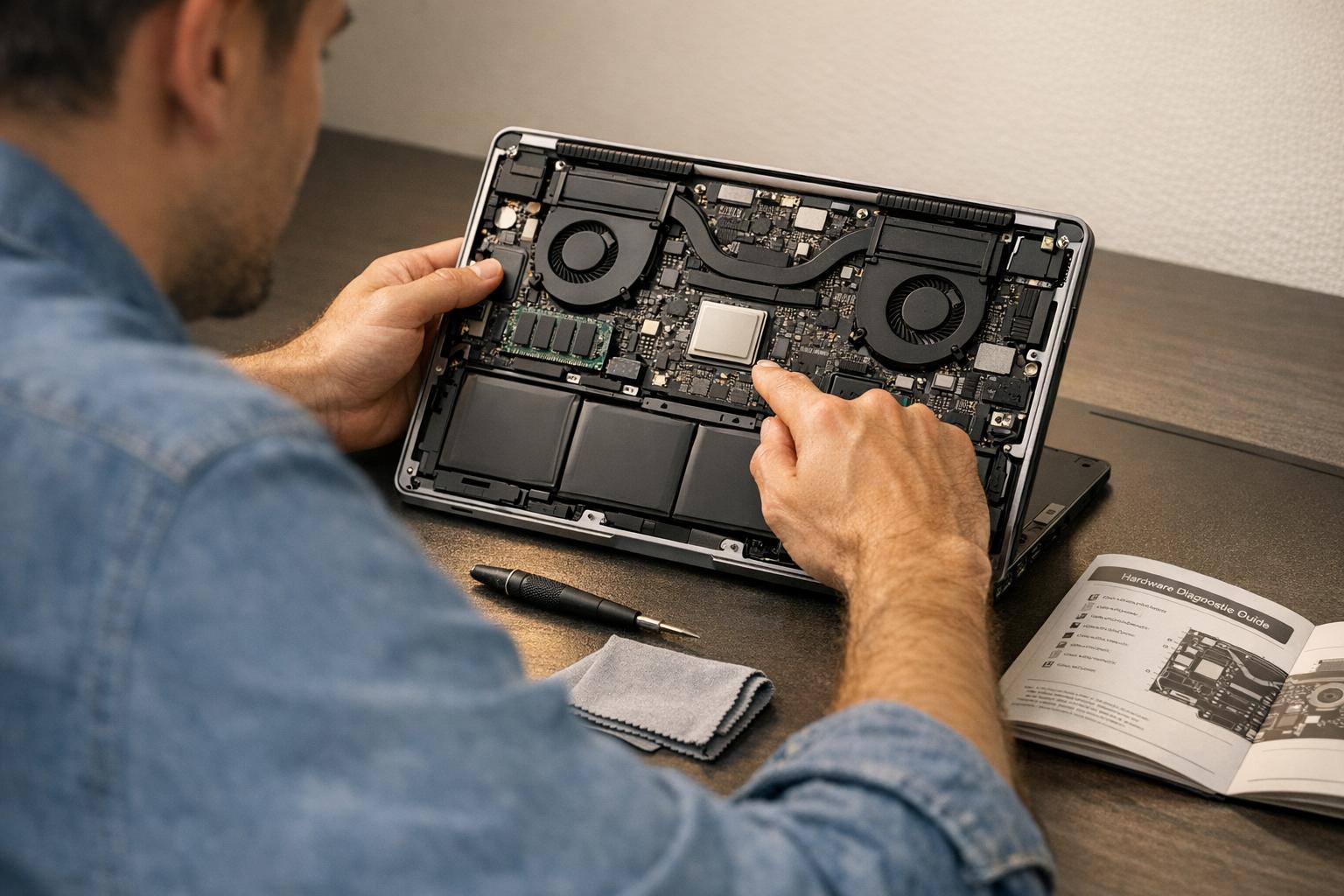
Most hardware failures give you warning signs weeks before they become expensive problems. A cracked solder joint, a fan clogged with dust, a battery holding 70% of its original capacity — these are all catchable early if you know what to look for. This guide walks you through how to check device hardware issues yourself, and when it’s time to hand the device to a technician.
How to Prepare for a Safe Hardware Inspection
Before you open any device, three things need to happen: power it down completely, back up your data, and ground yourself against static. Skipping any of these steps risks electric shock, data loss, or a fried component that costs more to replace than the original problem.
Power Down and Back Up First
Unplug the device from power. If the battery is removable, take it out. Capacitors inside power supplies can hold a charge for several minutes after unplugging — handle internal components carefully even after the device appears dead.
Back up to an external drive or cloud storage before you touch anything inside. If a cable disconnects during inspection and the device won’t boot afterward, you want your files somewhere safe.
| Category | Tools | Purpose |
|---|---|---|
| Screwdrivers | Phillips #00, #0, #1; Torx T5/T6 | Removing case screws on phones, laptops, consoles |
| Opening tools | ESD-safe spudgers, plastic pry tools | Separating cases without scratching or cracking |
| Cleaning | Isopropyl alcohol 90%+, compressed air, microfiber cloth | Removing dust, corrosion, and old thermal paste |
| Testing | Digital multimeter | Measuring voltage, checking continuity on power connectors |
| Safety | Anti-static wrist strap, safety glasses | Preventing ESD damage and eye injury from debris |
How Often Should You Inspect?
For a standard home laptop or desktop, a monthly visual check is enough. Gaming rigs, workstations, and devices in dusty environments need more frequent attention — a quick look-listen-feel before each heavy session catches problems early. If inspections consistently show nothing, extend the interval. If problems keep appearing, shorten it.
Visual and Physical Hardware Checks
A thorough visual check takes about 10 minutes and catches the majority of hardware problems before they cause data loss or component failure. Start outside, then move in.
External Inspection
Check the display for cracks, discoloration, or water marks. If the screen stays black but the device powers on, shine a flashlight directly at the panel — faint images mean the backlight has failed, not the whole screen.
Inspect the battery and casing for bubbling, bulging, or discoloration. A swollen battery is a fire risk. If you see or feel any swelling, stop using the device immediately and don’t try to charge it.
Examine ports and cables: USB-C, Lightning, HDMI, and power connectors. Look for bent pins, debris, or green corrosion. Frayed power cables are a shock hazard and should be replaced before the next use.
Internal Inspection
Open the device carefully, following manufacturer disassembly guides to locate hidden screws. Many modern phones and MacBooks have components soldered directly to the board — don’t attempt to remove them.
Use a soft brush to clear dust from circuit boards. Look for burnt components (dark spots, melted plastic), loose ribbon cables, or dried liquid residue. Acidic liquids like cola (pH 2.5–3.5) corrode traces far faster than plain water — if you see white or green residue, corrosion is already active.
Warning Signs by Device
- Smartphones: Cracked screen, bulging back panel, blocked mic/speaker grilles
- Laptops: Loose hinges, frayed power cord, stuck or missing keys, cracked LCD
- Desktops: Dents in casing, motherboard POST light off, loud HDD clicking
- Consoles (PS5/Xbox): Blocked cooling vents, damaged HDMI port pins, grinding disc drive
- Drones: Cracked frame, chipped propellers, obstructed sensors
Safe DIY Fixes
- Smartphones: Clean grilles with a soft brush; apply a screen protector over minor surface cracks
- Laptops: Replace detachable power cables; use compressed air on keyboard; reseat RAM if accessible
- Desktops: Reseat RAM modules; replace external power cables; clean dust filters
- Consoles: Vacuum vents; test HDMI cable on another monitor before assuming port failure
- Drones: Swap propellers; clean sensor lenses with a microfiber cloth
How to Use Built-In Diagnostic Tools
After the visual check, software diagnostics catch what your eyes can’t — failing RAM, a battery at 65% capacity, or a CPU running 20°C hotter than it should. Every major platform has built-in tools. Here’s how to use them.
Windows
Open Command Prompt and run perfmon /report to generate a health report covering CPU, disk, and network performance. For memory specifically, search “Windows Memory Diagnostic” in the Start menu and run it — it flags bad RAM modules on the next reboot.
macOS
Apple Diagnostics runs at startup. On Apple Silicon Macs, hold the power button until the Options screen appears, then press Command (⌘)-D. On Intel Macs, hold D immediately after powering on. Disconnect external devices first and make sure the Mac has airflow. The tool returns reference codes — write them down, they identify the exact failing component.
Dell and HP
Dell: press F12 at startup to access the One Time Boot Menu, then run the ePSA diagnostic. HP: the UEFI Hardware Diagnostic tool runs outside Windows, isolating hardware failures from software issues. HP generates a 24-digit failure ID you can enter directly into their repair portal.
| Platform | Tool | What It Tests | If It Fails |
|---|---|---|---|
| Windows | Windows Memory Diagnostic | RAM stability | Replace the faulty module |
| Windows | Performance Monitor (perfmon) | CPU, disk, network | Analyze report for recurring errors |
| macOS | Apple Diagnostics | Logic board, sensors, input devices | Share reference code with Apple service |
| Dell PC | SupportAssist / ePSA | CPU, HDD, fans, battery | Provide error code to Dell support |
| HP PC | HP PC Hardware Diagnostics UEFI | Full hardware isolation | Enter 24-digit failure ID into HP repair portal |
Checking Key Hardware Components
Diagnostics point you to a problem area. These checks help you confirm what’s actually failing in the three most common hardware failure categories: power, battery, and cooling.
Power Supply and Charging Hardware
Power supply problems show up as random shutdowns, failure to boot, flickering, or Blue Screen of Death errors under load. Physical signs include a burning smell, buzzing or clicking from the PSU, or bloated capacitors on the board.
For less severe issues, check that all power cables are fully seated. Use a multimeter to test voltage output on desktop PSUs if you’re comfortable doing so. A PSU delivering 11.2V on a 12V rail is failing and needs replacement.
Battery Health and Charging Ports
On iPhone (iOS 11.3 or later), go to Settings > Battery > Battery Health & Charging. Apple recommends replacement when capacity drops below 80%. On Windows laptops, run powercfg /batteryreport in Command Prompt for a full capacity history.
For charging port issues, test with a known-good cable and adapter first. If the problem persists, power down and use compressed air to clear lint from the port. Intermittent charging usually means a damaged port, a frayed cable, or a loose battery connector — all repairable without replacing the device.
Cooling Systems and Overheating
Signs of a cooling problem: fans running at full speed constantly, performance drops during normal tasks, or unexpected shutdowns. Temperatures above 90°C on a CPU under load indicate a cooling failure.
Clean the vents
Use compressed air to blow dust out of vents and fan blades. Don’t use a vacuum — it generates static. Do this every 3–6 months in dusty environments.
Check airflow
Laptops need a hard, flat surface. Soft surfaces like beds block bottom vents and can raise CPU temps by 15–20°C within minutes.
Update BIOS and drivers
Fan speed curves and thermal limits are managed by firmware. An outdated BIOS can cause fans to run at wrong speeds or miss thermal shutoff triggers.
Replace thermal paste
If cleaning doesn’t help and the device is 3+ years old, dried thermal paste is often the culprit. Replacing it can drop CPU temps by 10–20°C.
When Should You Call a Professional?
DIY checks work well for catching early warning signs. But some hardware conditions require tools and skills that go beyond what’s safe or practical at home.
- Liquid damage — rice doesn’t work. Ultrasonic cleaning reaches corrosion that a brush can’t touch. The faster you bring it in, the better the odds of saving the board.
- Swollen or leaking battery — fire risk. Don’t charge it, don’t leave it unattended.
- Clicking or grinding hard drive — mechanical failure in progress. Every power cycle risks permanent data loss.
- Startup beep codes or no POST — motherboard or RAM failure that requires component-level diagnosis.
- Smoke, burning smell, or electrical shock — stop immediately. High-voltage components can cause serious injury.
- Soldered CPU or RAM — most phones, tablets, and modern MacBooks have these. Attempting removal without a hot-air rework station destroys the board.
What Professional Diagnostics Actually Look Like
At Gadget Medics in Boca Raton, diagnostics go beyond running the built-in tools. We use component-level testing — multimeters, oscilloscopes for board-level faults, and ultrasonic cleaners for liquid damage. In 8 years of repairs, we’ve seen hundreds of devices written off as “dead” that came back to life after a proper cleaning.
Professional repairs typically cost 60–80% less than buying a replacement device. Most common repairs — screen replacements, battery swaps, charging port fixes — are completed same-day. All repairs at Gadget Medics carry a 90-day warranty on parts and labor. Broken Club members get lifetime warranty coverage and every diagnostic fee applied toward their repair.
“Detecting a failure early is the best way to prevent data loss.” — Andrew Cunningham, Senior Technology Reporter, Ars Technica
When you bring a device in, share your diagnostic findings — the error codes, the reference numbers, what the built-in tools flagged. That information cuts diagnosis time and gets your device back faster. There are also hardware problems that only show up under professional testing — issues that look fine on a visual check but fail under load.
Spotted a Hardware Problem?
Diagnostic fee applied toward your repair cost. 90-day warranty on all repairs.
Frequently Asked Questions
What are the most common signs of hardware failure in a device?
The most common signs are unexpected shutdowns, blue screens or kernel panics, loud clicking or grinding from a hard drive, a battery that drains in under an hour, ports that don’t charge reliably, and a device that runs hot even during light tasks. Any of these warrants a diagnostic check before the problem gets worse.
How do I check device hardware issues without opening it?
Use your operating system’s built-in tools first. On Windows, run perfmon /report and Windows Memory Diagnostic. On macOS, run Apple Diagnostics at startup — hold D on Intel Macs, or hold the power button on Apple Silicon. These tools test RAM, storage, battery, and sensors without requiring you to open the case.
How often should I run hardware diagnostics on my laptop or desktop?
For home users, a visual check monthly and a full software diagnostic every 3–6 months is enough. If you’re using a workstation or gaming PC daily, run diagnostics quarterly. Any time a device starts behaving strangely — random shutdowns, slowdowns, strange noises — run diagnostics immediately rather than waiting for the next scheduled check.
Can I safely clean the inside of my laptop myself?
Yes, for basic dust removal. Power down, unplug, remove the battery if possible, and use compressed air to blow dust out of vents and fan blades. Use 90%+ isopropyl alcohol on a microfiber cloth for circuit boards. Don’t use a vacuum cleaner — it generates static. If you see corrosion, burnt components, or liquid residue, stop and bring it to a technician.
When is it not worth repairing a device?
If the repair cost exceeds 50–60% of the device’s current market value, replacement often makes more sense. Motherboard failures on older budget laptops, water damage with extensive corrosion, and physically destroyed frames usually fall into this category. A technician can give you a written estimate before any work starts — you decide whether to proceed.
Does Gadget Medics repair all types of devices?
Yes — phones, tablets, laptops, MacBooks, desktops, gaming consoles (PS5, Xbox, Nintendo Switch), drones, and smartwatches. Gadget Medics has been repairing electronics in Boca Raton, FL since 2018, with 600+ Google reviews and same-day service on most repairs. Call (561) 279-6888 or walk in at either Boca Raton location.