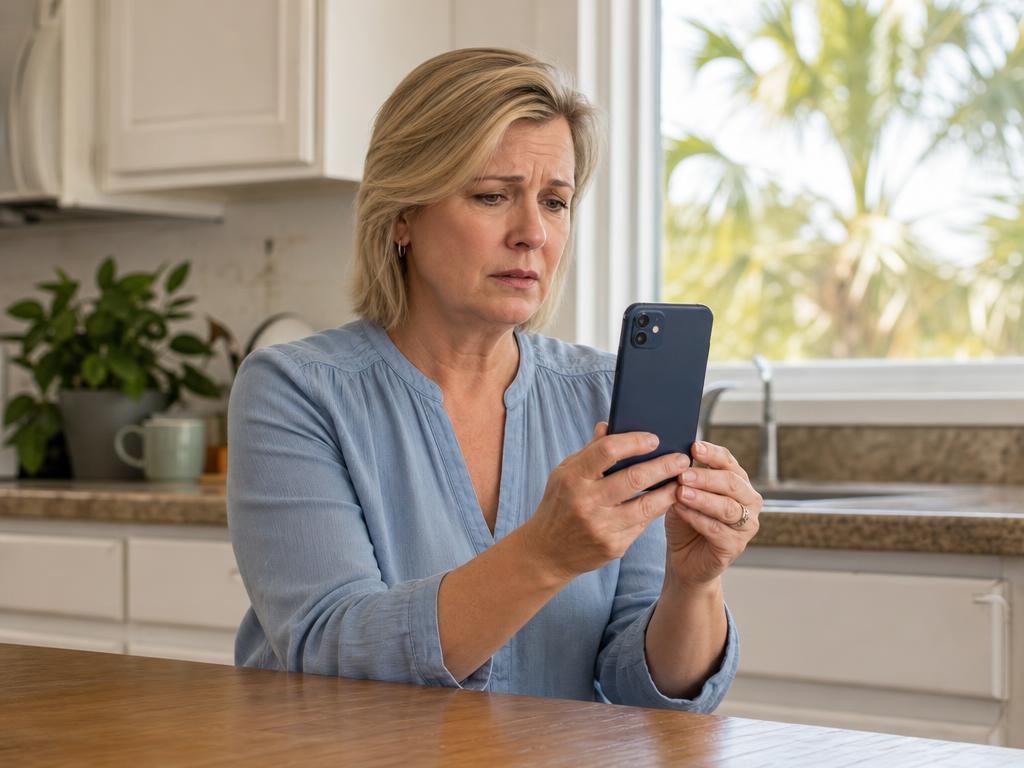
Scammers impersonating Apple Support — and Microsoft, and “Windows Security” — are calling people across Palm Beach County every day, and their scripts are getting more convincing. Eight years of device repairs in Boca Raton means we hear this story regularly: someone got a call or a screaming pop-up, it looked official, and now they’re not sure what they handed over. If that’s you right now, you’re not alone. Apple will not call you out of the blue about a security problem, and in most cases there are concrete steps you can take within the next hour.
Worried Something Was Left on Your Device?
Bring it in and we’ll tell you honestly what we find. Walk-ins welcome at both Boca Raton locations.
- How Fake “Apple Support” and Microsoft Calls Actually Work
- Seven Red Flags That Tell You It’s a Scam
- What Apple (and Microsoft) Actually Do — and Don’t Do
- On the Call Right Now? Do This
- You Already Gave Information or Let Them In — Do This Right Now
- The Browser Pop-Up Version of the Same Scam
- How to Tell a Real Local Repair Shop From a Fake One
- Why Boca Raton and Palm Beach County Get Targeted
- Frequently Asked Questions
How Fake “Apple Support” and Microsoft Calls Actually Work
The scam follows a predictable structure. You receive a call — often displaying “Apple” or even Apple’s real support number (1-800-275-2273) on your caller ID — telling you there’s suspicious activity on your account, your Apple ID has been compromised, or unusual purchases were detected. The voice may be a recorded message followed by a live agent, or a live person from the start who sounds calm and professional.
The Microsoft version uses the same script with different props: your computer is “sending error reports to Microsoft” or your IP address “has been flagged.” And it doesn’t always start with a phone call:
- A phone call from “Apple Support,” “Microsoft,” or a “Windows Security” team
- A browser pop-up or full-screen alert with an alarm sound and a number to call
- An email or text warning of suspicious activity and urging you to call or click right away
What you’re hearing on the phone is a spoofed number. Scammers can make any phone number appear in caller ID, including Apple’s actual support line. The call’s entire design is built around exploiting one psychological mechanism: urgency before clarity. “Your Apple ID will be locked in 24 hours.” “Suspicious charges of $399 were flagged on your account.” “We need to verify your identity right now to protect you.”
According to the FBI’s Internet Crime Complaint Center (IC3), tech support scams cost Americans more than $924 million in 2023, and people over 60 absorbed more than half of those losses.
Seven Red Flags That Tell You It’s a Scam
Apple Support doesn’t do any of the following, and neither does Microsoft. If a caller does ANY of these, hang up:
- They called you first. Apple does not proactively call customers about account security problems. Ever. Microsoft doesn’t monitor your personal computer and phone you about it either. If you didn’t initiate the conversation, it’s not them.
- They create urgency. “Your account will be locked,” “you’ll lose all your data today,” “this must be resolved in 15 minutes” — these are pressure tactics designed to stop you from thinking. Legitimate support gives you time to verify.
- They ask for your Apple ID password or verification code. Apple employees will never, under any circumstance, ask for your password, passcode, or the six-digit two-factor code. A verification code shared with anyone is as dangerous as sharing the password itself.
- They ask for gift cards, wire transfers, Zelle, or crypto. This is the clearest tell. No legitimate company, bank, government agency, or law enforcement body accepts Apple Gift Cards, Google Play cards, or any gift card as payment. Scammers pick these methods because they’re nearly impossible to reverse. Any request for gift cards is a scam — full stop.
- They ask you to install software for “remote access.” Any request to download AnyDesk, TeamViewer, UltraViewer, Zoho Assist, or similar remote desktop software is an immediate red flag. Granting remote access hands the caller full visibility into your device — passwords, accounts, saved payment information, everything.
- They “prove” themselves with a case number or your account details. That’s there to make the call feel official. Real Apple support verifies you, not the other way around.
- They don’t let you call back on your own. Real Apple support will never pressure you to stay on the line. Hang up, find Apple’s contact information at apple.com/support (or Microsoft’s at microsoft.com), and call that number yourself — not the number that called you or the one on a pop-up.
What Apple (and Microsoft) Actually Do — and Don’t Do
Apple does NOT: call you unsolicited about account security; ask for your Apple ID password over the phone; ask you to install third-party software; ask for gift cards, wire transfers, or cryptocurrency; tell you to bypass two-factor authentication.
Apple DOES: send security alerts via email to your registered Apple ID address; show alerts in your device’s Settings app and through the Apple ID portal at appleid.apple.com; offer real support through apple.com/support or in person at Apple Retail Stores; send push notifications to your trusted devices when a new sign-in is detected.
Microsoft works the same way: unless you contacted their official support first and asked for a callback, any call “from Microsoft” about your computer is a scam.
If you’re genuinely concerned about your account, go directly to appleid.apple.com — type the address yourself in your browser, don’t click a link from a text or email. Under “Devices,” you can see every device signed in to your Apple ID. Under “Sign-In and Security,” you can review recent activity.
In our eight years of repairing iPhones and MacBooks in Boca Raton, the customers who catch unusual account activity earliest are the ones who make a habit of checking appleid.apple.com directly — not those who wait for someone to contact them. Video calls are another route; our guide to FaceTime and video call scams covers that version.
On the Call Right Now? Do This
- Hang up. You don’t owe the caller a reason. If they threaten consequences for ending the call, that reaction is itself the scam. Let callbacks go to voicemail.
- Don’t install anything. If a download started but you haven’t opened it, delete it. If remote software is already showing your screen, close it and go to the next section.
- Tell someone you trust. Careful, intelligent people get caught by these rehearsed scripts every day, and a family member in the loop gives you backup.
You Already Gave Information or Let Them In — Do This Right Now
If you shared your Apple ID password, gave a verification code, or allowed remote access to your device, move through these steps as quickly as you can:
- If you allowed remote access — disconnect from the internet first. Toggle off Wi-Fi and cellular data to cut any active session, then restart your device. This doesn’t undo anything already done, but it stops an active remote connection immediately.
- Change your Apple ID password immediately, from a trusted device. Go to appleid.apple.com → your name → Password and Security → Change Password, and use a unique password. If the scammer was on your computer, do this from your phone or a family member’s device.
- Change your email password next (password resets flow through it), then your bank and any account you opened while they were watching.
- Review your signed-in devices. Still in appleid.apple.com, go to Devices. Sign out of anything you don’t recognize. That removes your Apple ID credentials from that session.
- Verify two-factor authentication settings. Go to Settings → [your name] → Sign-In & Security. Confirm 2FA is on and check that the trusted phone numbers listed are yours only.
- If you gave banking or card information — call your bank now. Immediately. Most banks have a 24/7 fraud line. The faster you report, the more they can do.
- Remove the software they had you install. On Windows: Settings → Apps, sort by install date, and look for anything recent you don’t recognize, especially AnyDesk, TeamViewer, ConnectWise Control, LogMeIn, or UltraViewer. On Mac: check Applications and System Settings → General → Login Items. On iPhone: Settings → General → VPN & Device Management, and remove any profile you didn’t install yourself.
- File a report with the FTC. Use reportfraud.ftc.gov. Reports help law enforcement track scam networks and specific phone numbers. If you lost money, also call the Boca Raton Police non-emergency line the same day.
A scammer with even brief remote access may have copied files, changed your account recovery details, or left remote-access or keylogging software that keeps working after the call ends, built to stay out of sight. In our experience, device owners who move through these steps within the first hour substantially reduce the damage from remote-access scams. The window of active access matters — a caller who was connected for 20 minutes had more opportunity than one who was disconnected after 3.
The Browser Pop-Up Version of the Same Scam
You may also encounter this family of scam as a browser alert — a full-screen message claiming “Virus Detected on Your iPhone,” “Your Mac Has Been Compromised,” or a fake “Windows Defender” warning — complete with a fake logo, a phone number to call, and sometimes audio designed to sound like a system alarm.
Here’s the reality: it’s the same scam, different delivery mechanism. The pop-up is a webpage using aggressive JavaScript to appear alarming. Your device is not actually infected. Here’s how to handle it:
- Do not call the number in the pop-up. It connects to the same scam operation as the phone calls described above.
- Don’t click anything inside it — not “Close,” “Cancel,” “Exit,” or “Call Now.” Those buttons can trigger downloads.
- Close the browser tab. On iPhone: swipe up from the bottom to see open apps, then swipe the browser away. On Mac: Cmd+W closes the tab; if that fails, Cmd+Q force-quits the browser entirely.
- If the tab won’t close: On iPhone, hold the sleep/wake button until “Slide to power off” appears, then restart. On Mac, press Command + Option + Escape and Force Quit the browser. On Windows, press Ctrl + Alt + Delete, open Task Manager, and End Task on the browser. When it reopens, don’t restore the previous tabs.
- Clear your browser history and website data. On iPhone: Settings → Safari → Clear History and Website Data. On Mac: Safari menu → Clear History. This prevents the page from reappearing. On Windows, run a scan with the built-in Windows Defender afterward.
A real Apple security alert never appears as a browser notification. It shows up within Settings or at appleid.apple.com — places you navigate to yourself, not places that pop up unsolicited on a random website.
How to Tell a Real Local Repair Shop From a Fake One
Some of these operations now run fake local business listings: you search for computer repair in Boca Raton, call what looks like a local shop, and reach the same people. A few checks sort it out:
- A real shop has an address you can visit. Look it up on Google Maps and Street View. Gadget Medics has two storefronts in Boca Raton, at Mission Bay Plaza and Feinrose Plaza.
- A real shop doesn’t take payment over the phone before it sees your device, and you approve the price before any work starts.
- A real shop has reviews that span years, not a batch of identical five-star reviews from the same few weeks.
- A real shop doesn’t cold-call you. If a “local shop” phoned you first about a problem on your computer, it isn’t a local shop.
And you can always bring a laptop or desktop computer to us in person and see exactly what’s being done to it.
Why Boca Raton and Palm Beach County Get Targeted
Scam campaigns go where the population skews older, where people are home during the day to answer the phone, and where many residents hold on to devices well past the typical replacement window. Palm Beach County fits all of that. Being in Boca Raton doesn’t put you at uniquely higher risk, but awareness is the most effective defense anywhere.
Scammers also ride the news. When Apple moves older models like the iPhone X or a 2018 MacBook Pro onto its obsolete list, a call saying “your device has been flagged as end-of-life and may be vulnerable” lands harder than a generic threat. For the record, “obsolete” means Apple no longer services that hardware; it doesn’t make the device suddenly insecure, and Apple isn’t calling anyone about it. If you’re weighing that decision, our guide on whether an obsolete iPhone or MacBook is still worth repairing walks through it.
Some operations now use AI-generated voices, and pop-ups closely copy Apple’s real design, but the play hasn’t changed: urgency, authority, pressure to act before you think. Two free resources worth bookmarking are the AARP Fraud Watch Network helpline (1-877-908-3360) and reportfraud.ftc.gov.
About Gadget Medics — Electronics repair shop in Boca Raton, FL. Repairing iPhones, MacBooks, Samsung phones, iPads, and gaming consoles since 2018. Walk-ins welcome at both Boca Raton locations. All repairs backed by a 90-day warranty on parts and labor; Broken Club members receive a lifetime warranty. Rated 4.8+ stars on Google across two locations.
If a caller got you to install software, grant remote access, or you’re simply not sure what happened to your device — bring it to Gadget Medics in Boca Raton. We’ll look it over, tell you honestly what we find, and help you understand your next steps.
Frequently Asked Questions
Can Apple’s real phone number appear on a scam call?
Yes. Caller ID spoofing allows scammers to display any number — including Apple’s actual support line (1-800-275-2273) — on your screen. A matching caller ID is not proof the call is real. Apple does not call customers unsolicited about account security; any such call is a scam regardless of what the caller ID says.
What if I’m not sure whether I gave out my Apple ID password?
Change it as a precaution — it takes two minutes and immediately closes access for anyone who may have it. Go to appleid.apple.com → Password and Security → Change Password. Then review your active devices on the same page and sign out of any sessions you don’t recognize.
I let someone remote into my device. What software do I remove?
On iPhone: Settings → General → VPN & Device Management — remove any profile you didn’t install yourself. On Mac: System Settings → Privacy & Security → Profiles, and check Applications for AnyDesk, TeamViewer, or Remote Desktop software. Delete the app and empty the Trash. On Windows, use Settings → Apps sorted by install date. If you’re unsure what was left behind, bring the device in and we’ll walk through it with you.
Should I call the number back to report it?
Don’t call it back — the number is often spoofed, or calling back just reconnects you to the scammer. Instead, report it at reportfraud.ftc.gov. You can also file a complaint with your carrier to flag the number for call-blocking databases. Locally, the Boca Raton Police non-emergency line and the Florida Attorney General’s office (myfloridalegal.com) also take scam reports.
Can I get my money back if I paid a scammer with a gift card or card?
Gift card scams are very difficult to reverse. If you bought cards but haven’t shared the code yet, call the card issuer’s number on the back immediately — they may be able to freeze the value. If the code was already given, recovery is unlikely. File a report with the FTC at reportfraud.ftc.gov. For credit or debit charges, dispute them with your bank right away; credit cards in particular have buyer protections for exactly this.